Updated 29 September 2026 for ANTH/SNDK selection. Screenshots and numeric presets show an earlier ANTH release, not current settings for every market. This public guide does not translate or change the trading cabinet. Compare EXITE, Argent, Cypher and QFEX.
Why EXITE waits: ANTH and SNDK entry checks
What the bot is actually doing
It places a buy slightly below the market and a sell slightly above it, aiming to trade both sides rather than predict direction. A fill can leave an open position exposed to price changes until it is closed. That is a risk of market making, even when orders are maker-only.
What decides a good session is cost. Every fill pays a fee, and sometimes the price keeps moving after your order fills, so the position you hold is worth a little less than you paid. Together that is one number: cost per million dollars traded, or CPM. Lower is better.
EXITE aims to reduce adverse selection by filtering entries after sharp moves, in narrow spreads or with one-sided trading flow. Passing those checks does not remove inventory risk or guarantee that a trade will be profitable.
The entry gate: a release example
The screenshot below illustrates the five-condition gate from the documented ANTH release. Its numeric thresholds are historical examples, not a verified specification for every current market. Use the live card for the selected market; do not infer that SNDK uses the same thresholds.
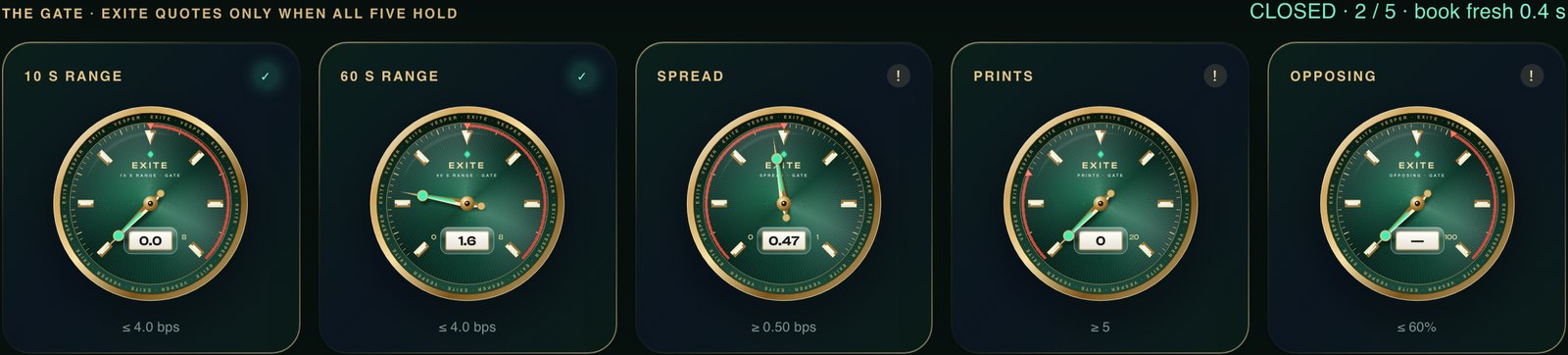
Here the gate is closed, 2 of 5: price is calm, but the spread is only one tick and nobody is trading.
- 10 s range
How far the price moved in the last ten seconds. Above 4 bps, it is too jumpy to quote.
- 60 s range
The same over a minute. A calm ten seconds right after a sharp minute is not calm.
- Spread
The gap between the best buy and the best sell. It has to be at least 0.50 bps. When the book is one tick wide, there is nothing to earn.
- Prints
How many trades just went through. At least 5. A market nobody trades will not fill both sides.
- Opposing
How one-sided the flow is. When more than 60% of it hits one side, a maker order on the other side gets run over.
The trade-off: waiting for the gate can reduce trading volume compared with continuous quoting. Lower costs or profits are not guaranteed; results depend on the market, fills and all applicable fees.
Check the selected account and collateral
Hyperliquid balances depend on the account abstraction mode. Standard uses separate Spot, Perps and HIP-3 balances; Unified and eligible portfolio-margin accounts use different arrangements. The old Perps → Spot → IO screenshots below illustrate Standard, not a universal funding requirement. Read the official account-mode instructions before any transfer.
- 1. Confirm your account mode
Confirm the wallet, account mode and currently available collateral on Hyperliquid. Do not change account mode or move funds solely to match an old screenshot. The following images document a Standard-account transfer example.
- 2. Check the selected Entropy market
Identify the selected io:ANTH or io:SNDK market and its venue in the current interface. The historical image opens Anthropic (IO); it does not demonstrate the present balance arrangement for every account mode.
- 3. Verify the applicable funding route
Use only the funding route actually applicable to your account and shown by the venue. The old Spot <> Perps (IO) screenshot is not an instruction for Unified accounts. Confirm the destination and resulting balance yourself; this guide does not recommend a transfer amount.
For a new account, check the venue’s current onboarding and eligibility requirements. An optional project referral is entropy.io/?r=vesper. It does not activate EXITE, approve a trading agent or replace account checks.
One signature, nothing to copy
Open the connect page, pick Entropy and press Connect wallet. MetaMask, Rabby and OKX all work. You sign one ApproveAgent message, and Vesper creates a trading key for you. It can place and cancel orders, and it cannot move your funds.
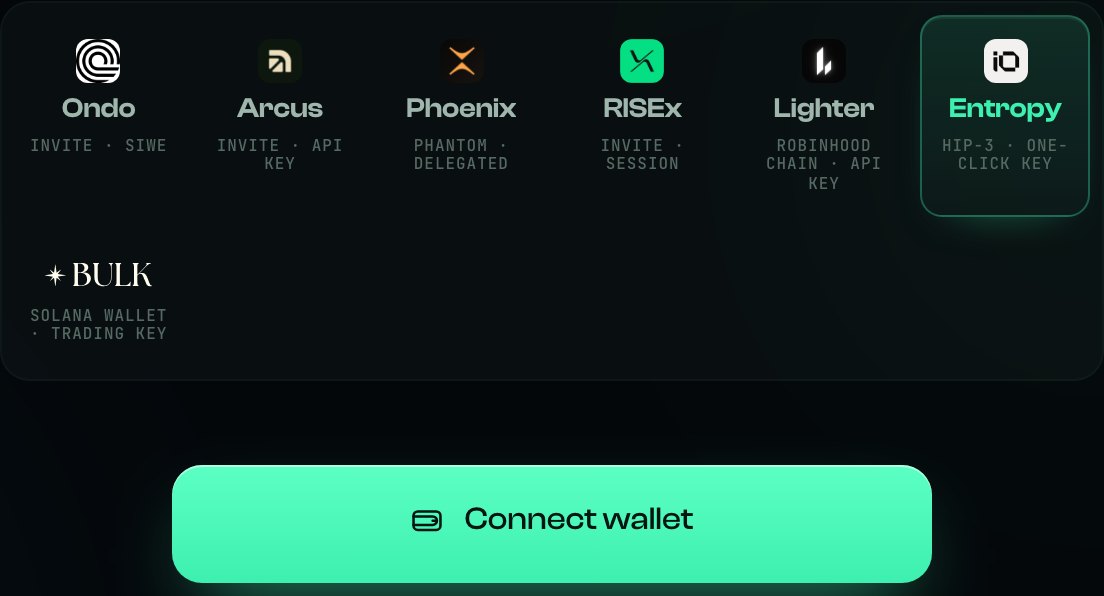
Entropy is the tile at the end of the first row.
A wallet signature alone does not prove the trading key is ready. If the venue refuses the connection, read its exact error and check the approved agents on Hyperliquid. Agents can expire or be deregistered. Do not revoke a key used by another active session.
EXITE, at the top of the list
In Strategy & settings, select EXITE and then the enabled ANTH or SNDK market. The current selector requires catalog permission for both manual selection and entries. A disabled option is not available; do not try to bypass it.
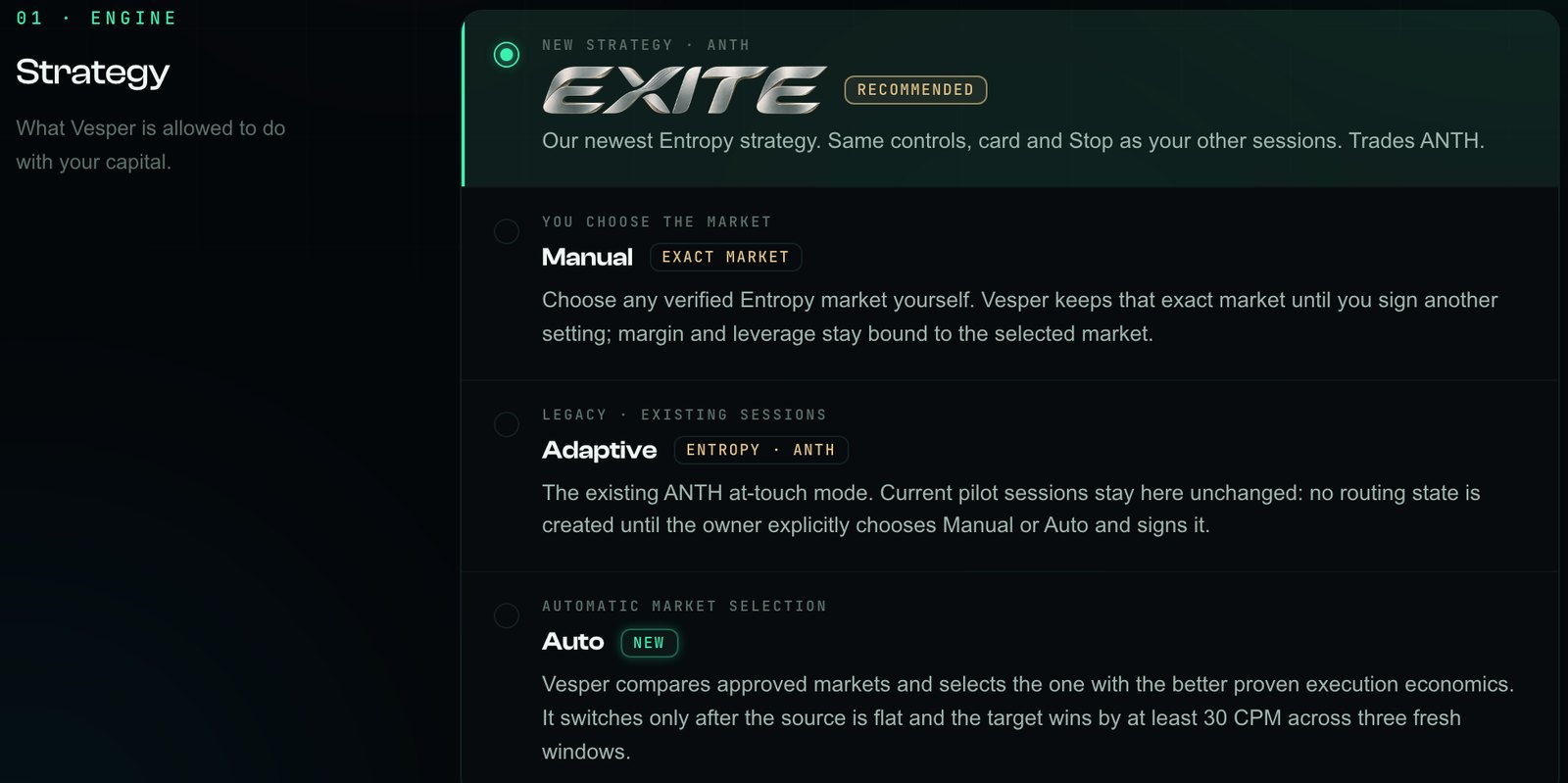
EXITE is selected. The other options are older Entropy modes.

Check the summary for EXITE and your chosen ANTH or SNDK market. Wait for that market’s settings to load, verify size and leverage, then select Save settings and wait for confirmation. A changed selector alone does not save settings or start trading.
Before changing market or strategy, sign Stop for the running Entropy session and independently confirm a flat position and no bot orders. Do not treat an accepted Stop request or a closed browser tab as completed cleanup.
How much it puts to work
Check the margin and leverage available for the selected market in the current interface. Limits can differ between ANTH and SNDK; the old slider screenshot is not a current limit for both. Read the saved values and available collateral before signing Start.
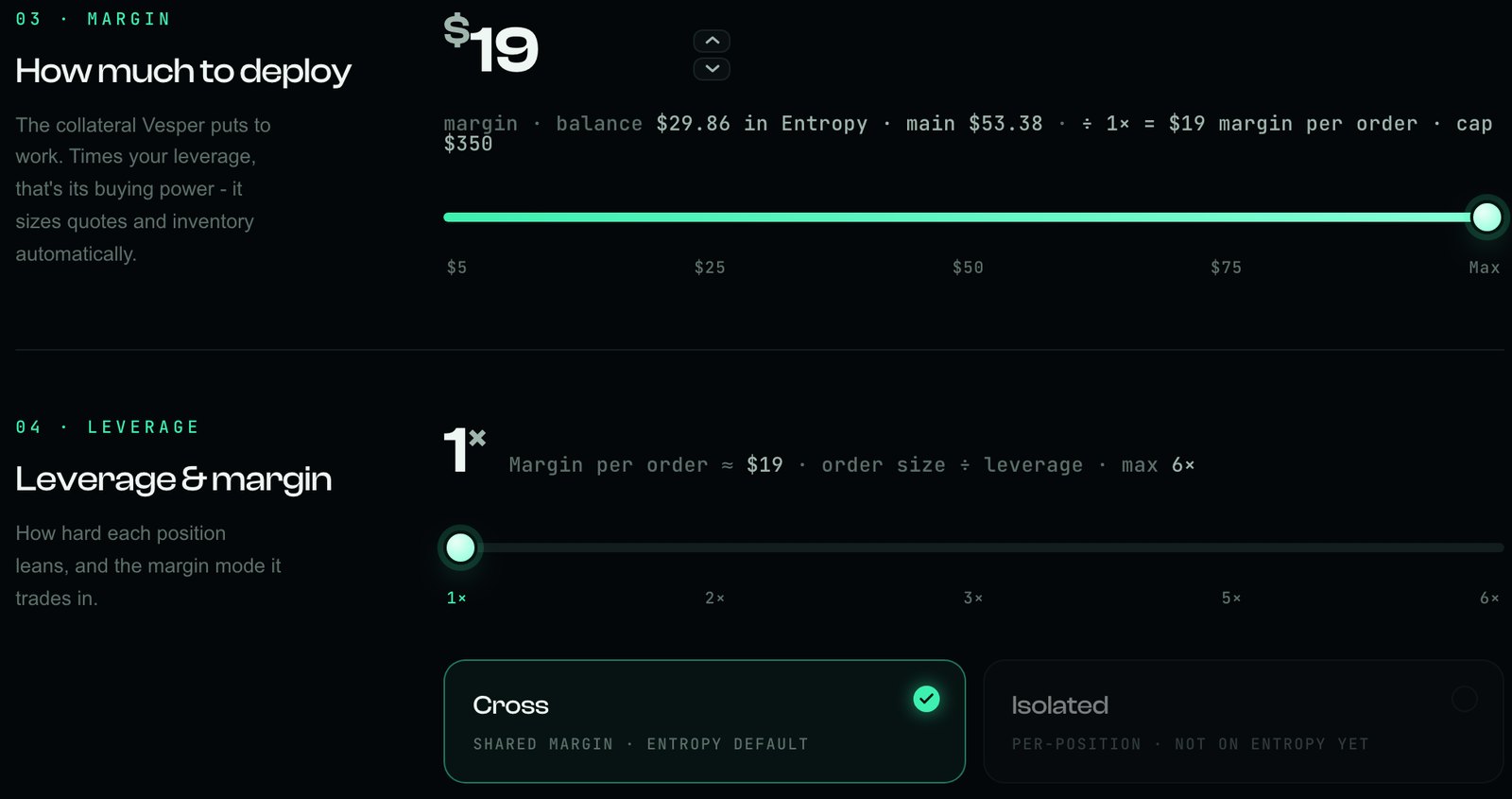
Margin and leverage. Cross is the Entropy default.
The documented release used an approximately $12 order-size example. Current minimums, size fitting and leverage limits must be checked for the selected market; do not treat this historical number as a guaranteed accepted order. Margin is not a loss limit. Cross-margin rules and adverse price movement can expose more collateral than a single order’s allocation.
Press Start and approve the fee once
Read the selected mode’s guide and review the actual wallet authorization before signing. Venue fees, funding and trading risks depend on your account and market.
After that, EXITE runs on our server. You can close the tab, and the session keeps going.

While a session runs, the red Stop EXITE button stays first in line.
If Start asks you to reconnect, review the displayed reason and permissions before signing again. A key may be expired or unavailable; reconnecting is not a guarantee that all account checks will pass. Confirm the resulting session state.
Reading the dashboard
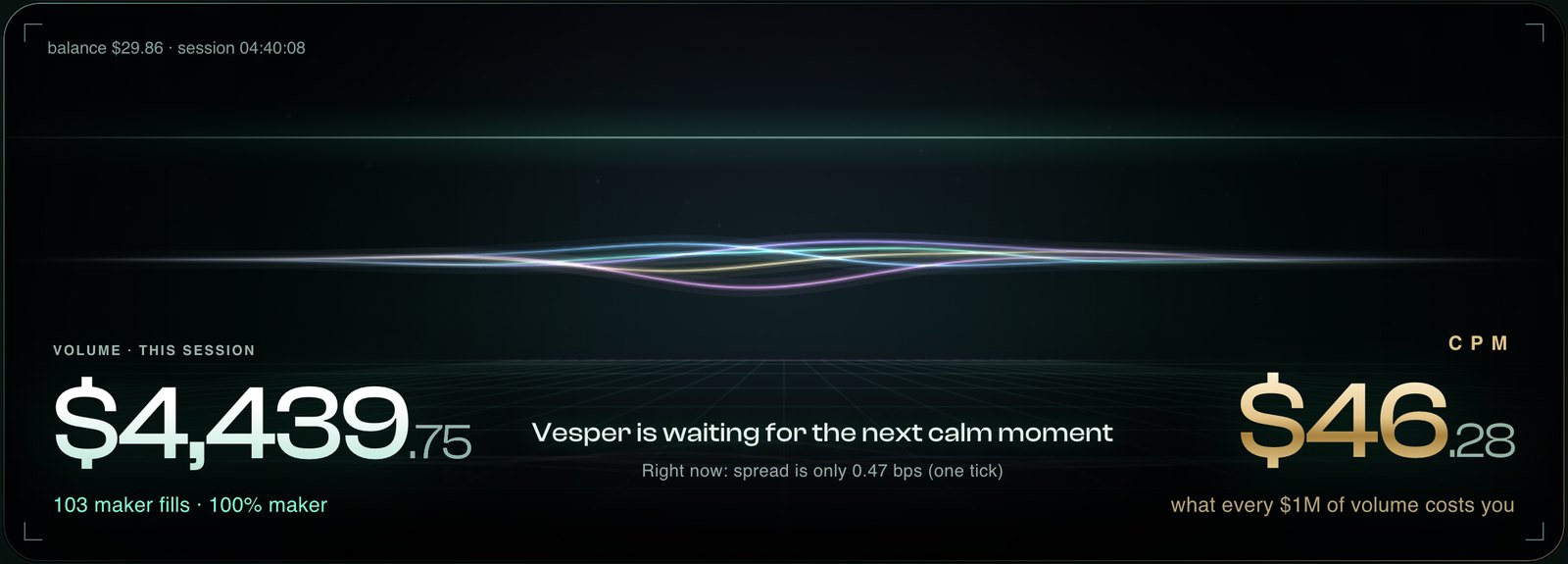
Volume on the left, CPM in gold on the right, and the reason in the middle.
- The caption
“Vesper is waiting for the next calm moment” with the reason underneath, for example “spread is only one tick”. The caption disappears once EXITE is in the book.
- Volume
What this session has traded, with the number of maker fills.
- CPM
What every $1M of volume costs you, including fees. It needs some volume before it settles, and on the first few fills it swings a lot.
- The gate
The five dials. OPEN means all five hold and EXITE is quoting. CLOSED · 2 / 5 means it is waiting.
- Activity and fills
A plain-language log of what EXITE did, and every fill with side, size and price.

Session events and recent fills are shown here.
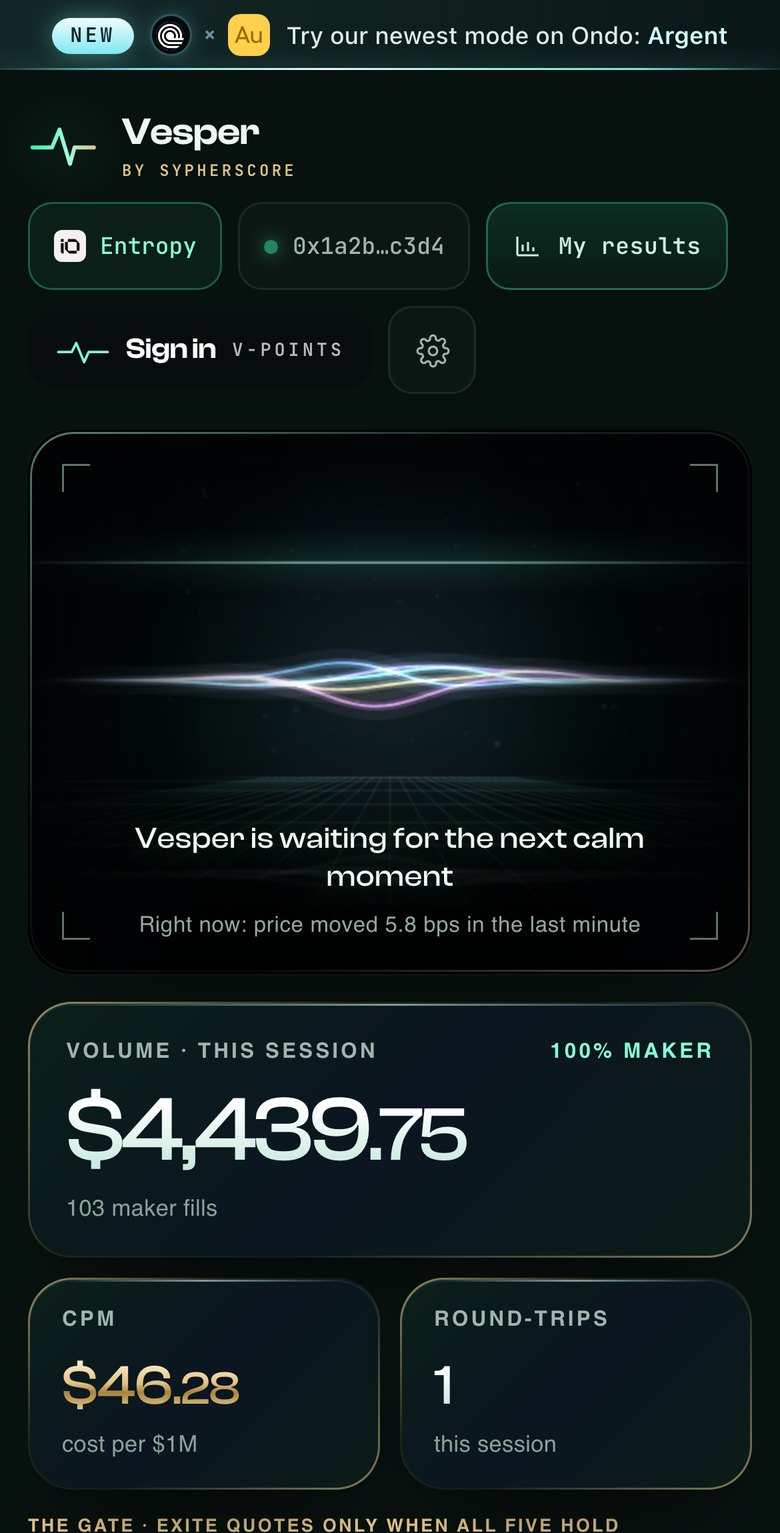
The same dashboard on a phone.
Waiting without fills can be expected when the gate is closed. Read the reason, confirm the dashboard is updating, and check for connection or error messages. A waiting caption by itself does not prove that the session is healthy.
Verify Stop before leaving
Use Stop EXITE in the dashboard and complete the requested wallet authorization. Wait for the final state, then check the Entropy account directly: the position must be zero and there must be no open orders. A click, an acknowledgment or a closed browser tab is not proof that cleanup has finished.
Stop requests order cancellation and position closure. Network or venue failures can delay completion; an exit can realize a loss and incur fees or slippage. Do not start another mode on the same account until cleanup is confirmed. Check the completed run in session history.
If the dashboard is disconnected or its numbers stop updating, treat them as stale. Inspect the venue and contact support. If manual intervention is necessary, first prevent the bot from submitting more orders, then manage remaining orders and exposure on the venue. Revoking a trading key does not itself cancel orders or close a position.
Closing the tab or disconnecting a wallet from the page is not Stop. Deleting a saved key from Vesper is also different from revoking its authorization on Hyperliquid. Verify both the session outcome and the permissions you intend to remove.
Before you start
- Why is my session not trading?
- An entry gate can block quotes because current conditions do not pass. Read the reason shown for the selected market and also check connection, freshness and error messages. The illustrated five-condition ANTH screenshot is not proof of identical thresholds on SNDK. Waiting alone does not establish that a session is healthy.
- My balance shows $0.00.
- Check the selected wallet, market, account mode and venue’s actual collateral view. Standard and Unified balances differ. Do not make another transfer solely because the card shows zero; first confirm the data is fresh and the account connection is correct. Use the venue’s current instructions, not a historical screenshot.
- What should I check before Start?
- Read the selected mode’s guide and review the actual wallet authorization before signing. Venue fees, funding and trading risks depend on your account and market.
- Can I pick a different market?
- The reviewed public EXITE selector lists ANTH and SNDK on Entropy (io:ANTH / io:SNDK). A market requires current catalog permission for manual selection and entries. Complete Stop and verify flat/orderless before changing markets. QFEX SNDK-USD uses Risk core and is a separate integration.
- Can it withdraw my funds?
- The trading key does not grant withdrawal permission. It can authorize real orders, which can lose money. Deleting a saved key from Vesper does not by itself prove that its venue authorization has been revoked or that all positions and orders are gone.
What EXITE cannot do
Trade every minute. It waits whenever the market is jumpy, thin or one-sided. If you want volume above everything else, this is not the mode for you.
Promise a return. Market making aims to earn the spread, but fees and adverse inventory movements can outweigh it. Some sessions end down.
Move your funds. The trading key has no way to withdraw.
New to Entropy? The Entropy guide covers the account side in more detail.